Your bike computer is the command center for every ride. Whether you're training with power, navigating new routes, or tracking your progress over time, proper setup determines whether your device helps or frustrates you. Most cyclists never customize their computers beyond the default screens, missing powerful features that could transform their training.
This guide covers everything from initial configuration to advanced training features. You'll learn how to set up optimal data screens for different ride types, properly pair all your sensors, configure power meter calibration, and use navigation features effectively. Whether you're using a Garmin Edge, Wahoo ELEMNT, Hammerhead Karoo, or other cycling GPS, these principles apply across platforms.
Before You Start
Ensure your bike computer has the latest firmware. Connect to WiFi (if supported) or sync with the companion app to download any available updates. Firmware updates often fix bugs, improve GPS accuracy, and add new features.
Initial Setup & Configuration
User Profile Settings
Your user profile directly affects calorie calculations, training load metrics, and recovery recommendations. Enter accurate data:
- • Weight: Update monthly for accurate power-to-weight metrics and calorie burn
- • FTP (Functional Threshold Power): Essential for power zones and Training Stress Score
- • Heart Rate Zones: Set based on LTHR test, not age-based formula
- • Max Heart Rate: Use your true tested max, not 220-age
- • Wheel circumference: Critical for accurate speed without GPS (indoor/tunnels)
GPS Settings
- • Recording Mode: Use "Every Second" for training analysis, "Smart" for longer battery life
- • GPS Mode: GPS + GLONASS or GPS + Galileo provides best accuracy. Multi-band (L1/L5) is superior if your device supports it
- • Auto Pause: Enable if you stop at traffic lights; disable for racing
- • Auto Lap: Set to your preferred distance (1 mile/1 km) or use manual laps only
Display Settings
- • Backlight: Auto-brightness saves battery; set timeout to 8-15 seconds
- • Color theme: High contrast themes are easier to read in bright sunlight
- • Alerts: Configure audio/vibration for lap, heart rate zone, power zone, navigation turns
Optimal Data Screen Configuration
Most cyclists benefit from 3-4 different screens optimized for specific purposes. Limit each screen to 6-8 fields - you need to read them at a glance while riding.
Screen 1: Primary Training Screen
Your most-used screen with essential metrics:
Screen 2: Interval Training Screen
Optimized for structured workouts:
The gear these numbers assume
Every pace, zone and power figure on this page assumes something is measuring it. These are the three that cover running, cycling and the threshold work in between.
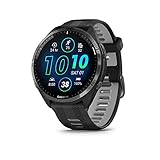 Garmin Forerunner 965
Multisport with the training-load and threshold metrics most of these calculations assume you can actually see day to day.
Check Backcountry → Check price on Amazon → COROS APEX 2 Series GPS Watch
Sapphire titanium and the longest battery in its class, which is the deciding feature once sessions run past a few hours.
Check Backcountry → Check price on Amazon → Favero Assioma Uno Power Meter Pedal
Single-sided pedal power, the cheapest honest way to start training with watts instead of estimating from heart rate.
Check Backcountry → Check price on Amazon →As an Amazon Associate we earn from qualifying purchases, at no extra cost to you. Prices change, so check before buying.
Screen 3: Climbing Screen
- • Grade % (current gradient)
- • VAM (vertical ascent meters per hour)
- • Power (3-second or 10-second average)
- • Cadence
- • Heart Rate
- • Altitude
- • Total Ascent
Screen 4: Navigation Screen
- • Map (large, center of screen)
- • Distance to turn
- • Distance remaining
- • ETA
- • Current speed
Pro Tip: Use 3-Second Power
Instant power fluctuates wildly and is distracting. 3-second average power smooths the data enough to be useful while still being responsive. Save 10-second or 30-second averages for endurance rides where you want to pace more conservatively.
Sensor Pairing & Configuration
ANT+ vs Bluetooth: Which to Use?
| Feature | ANT+ | Bluetooth |
|---|---|---|
| Multiple connections | Yes - unlimited devices | No - one device only |
| Battery usage | Slightly higher | Lower |
| Connection reliability | Excellent | Good |
| Indoor trainer + head unit | Both can connect | Pick one |
Recommendation: Use ANT+ for all bike computer connections. This allows you to also connect sensors to your phone app or indoor trainer simultaneously. Save Bluetooth for phone connections only.
Common Sensors & Setup
Heart Rate Monitor
- • Moisten electrode pads before wearing
- • Position chest strap just below pecs
- • Pair via ANT+ for multi-device support
- • Replace battery annually or when readings fade
Speed Sensor
- • Mount on front or rear hub
- • Set correct wheel circumference
- • Useful for indoor training or GPS dropouts
- • Spin wheel to wake sensor before pairing
Cadence Sensor
- • Mount on crank arm (non-drive side)
- • Pedal to wake sensor before pairing
- • Essential for cadence-focused training
- • Standalone preferred over combo units
Radar (Garmin Varia)
- • Mount on seatpost, facing rearward
- • Pairs automatically with compatible devices
- • Configure alert intensity (visual, audio, both)
- • Rear light mode syncs with head unit
Power Meter Setup & Calibration
Power meters require more careful setup than other sensors. Proper configuration and regular calibration ensure accurate data for training.
Initial Power Meter Setup
- Install power meter according to manufacturer instructions
- Wake the power meter (spin cranks or pedals)
- On bike computer: Settings > Sensors > Add Power Meter
- Select your power meter from the list (identified by ID number)
- Set crank length in power meter settings (usually 170mm, 172.5mm, or 175mm)
- Perform initial calibration/zero-offset
Calibration Best Practices
When to Calibrate
- • At the start of every ride (after 5-10 min warm-up)
- • When temperature changes significantly (>10°C/20°F)
- • After transporting your bike
- • If power readings seem off
Calibration Steps
- Unclip and stop pedaling completely
- Position cranks vertically (one at 12 o'clock, one at 6 o'clock)
- Don't touch the cranks or stand on the bike
- Navigate to Sensors > Power Meter > Calibrate
- Wait for "Calibration Successful" message
- Note the offset value - if it changes dramatically between rides, investigate
Power Meter Data Fields
| Data Field | Best Use |
|---|---|
| 3s Power | General training, intervals |
| 10s Power | Endurance pacing, time trials |
| Lap Power | Interval training (hit lap at interval start) |
| Normalized Power (NP) | Understanding training stress of variable rides |
| IF (Intensity Factor) | Real-time intensity vs FTP (racing, pacing) |
| Power Zone | Ensuring you're training in the right zone |
| L/R Balance | Pedaling technique, injury rehabilitation |
Training Features & Workouts
Structured Workouts
Most bike computers support structured workouts with on-screen targets and guidance:
- TrainingPeaks: Syncs scheduled workouts directly to Garmin/Wahoo
- TrainerRoad: Push outdoor workouts to your head unit
- Garmin Connect: Create or download workouts from library
- Wahoo SYSTM: Push structured workouts to ELEMNT
- Zwift: Export outdoor versions of Zwift workouts
Performance Metrics
Real-Time Metrics
- • Training Stress Score (TSS)
- • Intensity Factor (IF)
- • Kilojoules expended
- • Power zones time-in-zone
- • FTP estimate (Garmin)
Recovery Metrics
- • Recovery time (hours)
- • Training load (7-day)
- • Training status (productive, maintaining, etc.)
- • VO2 max estimate
Segments & Virtual Partner
- Strava Live Segments: Star segments in Strava app, sync to device, get real-time performance vs PR/KOM
- Virtual Partner: Race against a target pace or previous effort
- Course Records: Automatic segment creation from your rides
Troubleshooting Common Issues
GPS Won't Lock / Inaccurate
Solutions:
- • Wait 60-90 seconds before starting ride
- • Ensure clear sky view (not inside garage)
- • Update firmware for latest GPS improvements
- • Enable GPS + GLONASS/Galileo multi-constellation
- • Reset device if persistent issues
Sensor Dropouts
Solutions:
- • Replace sensor battery
- • Check for interference (some e-bikes cause issues)
- • Remove and re-pair the sensor
- • Clean sensor contacts
- • Try ANT+ instead of Bluetooth (or vice versa)
Power Meter Reading Incorrectly
Solutions:
- • Perform zero-offset calibration
- • Check battery level in power meter
- • Verify crank length setting
- • Check torque on pedals/cranks
- • Update power meter firmware
Battery Draining Too Fast
Solutions:
- • Reduce backlight brightness and timeout
- • Use "Smart" GPS recording mode
- • Disable unused connectivity (WiFi, phone notifications)
- • Turn off Live Tracking if not needed
- • Battery may need replacement (after 3-5 years)
Routes Not Syncing
Solutions:
- • Check WiFi connection on device
- • Verify account is linked in companion app
- • Force sync from companion app
- • Check available storage on device
- • Manually import GPX file via USB if needed
Brand-Specific Setup Tips
Garmin Edge Series
- • Use Garmin Connect Mobile app for easy setup and sync
- • Enable ClimbPro for detailed climb information
- • Set up Incident Detection and emergency contacts
- • Use Garmin IQ for third-party data fields and apps
- • Sync with Strava for Live Segments
- • Configure GroupRide for riding with others
Wahoo ELEMNT/BOLT/ROAM
- • All configuration done through ELEMNT companion app
- • Use "Take Me Anywhere" for on-device route creation
- • Configure LED alerts for easy zone indication
- • Set up auto-uploads to Strava, TrainingPeaks
- • Use Live Track to share location with family
- • Enable smart trainer control for ERG workouts
Hammerhead Karoo
- • Touchscreen-based setup, very intuitive
- • Color-coded maps show gradient changes
- • Excellent integration with Strava, TrainingPeaks, Komoot
- • Automatic software updates via WiFi
- • Use Climber feature for detailed climb profiles
- • Configure custom dashboards easily on device
Bryton/Lezyne/Sigma
- • Use respective companion apps for configuration
- • Import GPX routes via USB or app
- • Focus on essential data fields (often more limited options)
- • Check compatibility with third-party sensors before buying
- • Great value options with core functionality
Frequently Asked Questions
What data fields should I display on my bike computer?
For most training rides, display: current power (or heart rate), cadence, speed, distance, time, and average power. For racing or intervals, add lap power, lap time, and 3-second average power. Keep your main screen to 6-8 fields maximum for quick glances while riding.
Should I use ANT+ or Bluetooth for sensors?
ANT+ is generally preferred for cycling because it allows multiple devices to connect to the same sensor (your bike computer and indoor trainer app). Bluetooth is limited to one connection but uses slightly less battery. Most modern sensors broadcast both protocols simultaneously, so connect via ANT+ to your bike computer.
How do I pair a power meter with my bike computer?
Wake up your power meter by spinning the cranks, then go to your bike computer's sensor settings and search for power meters. Select your device from the list. Perform a zero-offset calibration after pairing, and repeat the calibration at the start of each ride for accurate readings.
Why is my bike computer GPS inaccurate?
GPS accuracy issues usually stem from: not waiting for full satellite lock before starting, riding under heavy tree cover or tall buildings, outdated firmware, or starting too soon after turning on the device. Always wait until GPS shows full satellite acquisition (usually 30-60 seconds) before starting your ride.
How often should I update my bike computer firmware?
Check for firmware updates monthly. Updates often include bug fixes, new features, improved GPS accuracy, and enhanced battery life. On Garmin, updates sync automatically via Garmin Connect. On Wahoo, check the ELEMNT companion app for available updates.
Related Articles
📊 Power Up Your Cycling
Use our free calculators to optimize performance: